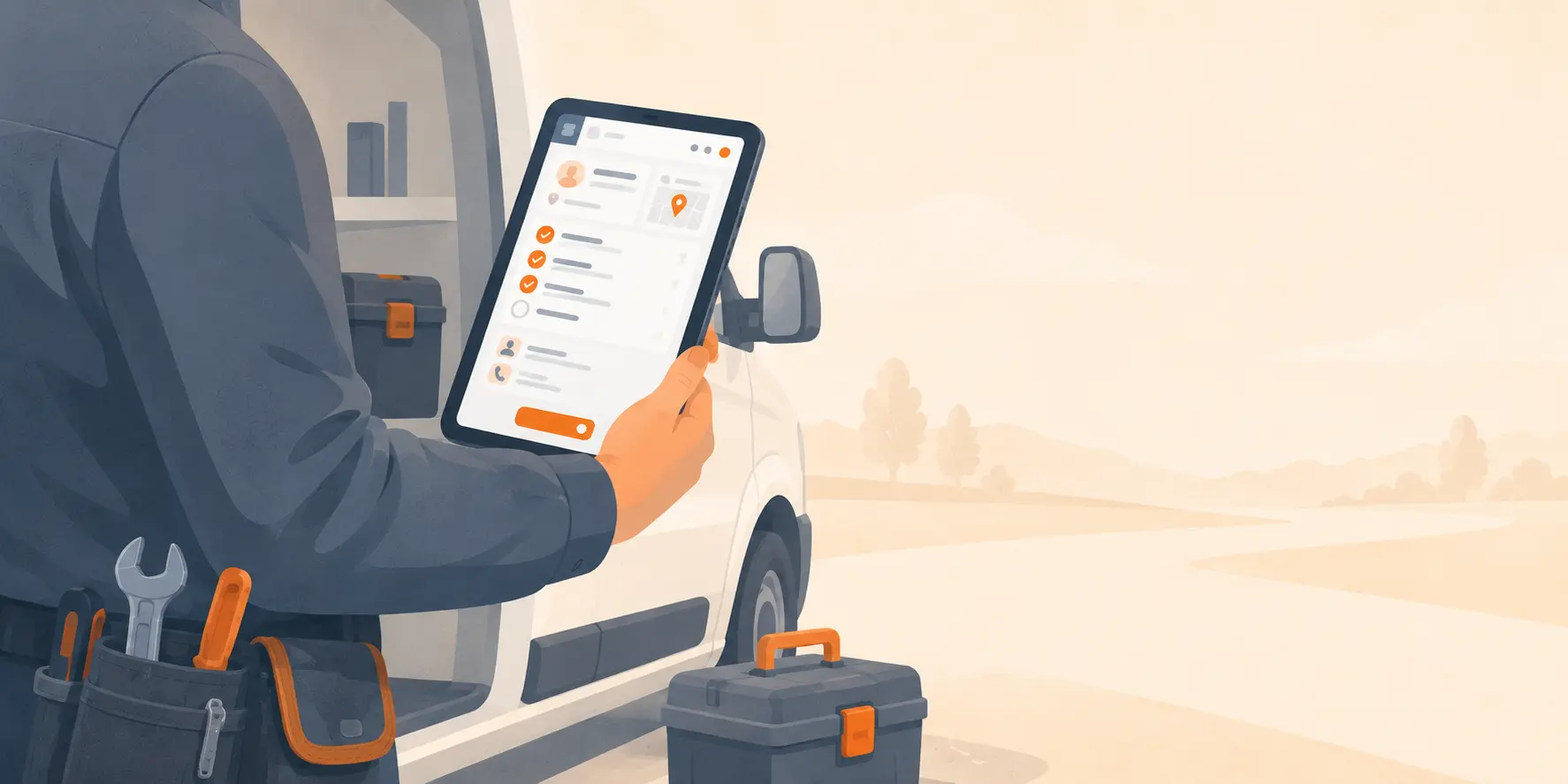
Field technicians work from trucks, crawl spaces, rooftops, and customer kitchens. They check job details while standing in driveways. They update statuses with greasy hands. They pull up customer history in basements with spotty cell service.
Most of their work happens away from a desk. Yet plenty of field service platforms are still built desktop-first, with the phone version treated as a shrunken copy of the web app. That puts the friction right where it hurts most: at the job site, with the customer watching.
The desktop-first problem
Shrinking a desktop interface to fit a phone does not hold up in the field. Buttons get too small to hit on the first try. Common actions end up buried two or three menus deep. Forms built for a keyboard turn into a chore of taps and scrolling on a five-inch screen.
A technician who just pulled into a driveway needs the job details now, not after pinching to zoom on a table or waiting for a full dashboard to load just to mark a job "in progress." When the tool slows them down, they stop reaching for it.
Instead they scribble notes on a clipboard, text updates to dispatch, or wait until they get home to log their hours. Then the gaps show up downstream: schedules that do not match reality, invoices that miss billable time, and a customer call no one can answer because the visit was never recorded.
What mobile-first actually means
Mobile-first means the phone is where the design starts, not where it ends up. You build around how a phone is actually held and used in the field, with its limits and its strengths in mind from the beginning. For field service work, that comes down to a handful of concrete requirements:
Large tap targets
Buttons and controls sized for thumbs, not mouse pointers. Usable with gloves on.
Offline capability
Jobs and customer data cached locally so technicians can work without cell signal.
Quick actions
Clock in, update a job status, or take a photo — accessible in one or two taps.
Camera integration
Photos attach right inside the checklist. Snap the before-and-after without leaving the app.
Time capture
Automatic location recording at clock-in and clock-out for accurate field data.
Simplified navigation
Home screen shortcuts go directly to "My Jobs" and "Customers" — no menu diving.
None of these are extras. For a technician running a full day of calls, each one decides how fast they get through their jobs and how complete their records are by the time they clock out.
PWA vs. native apps
There are two common ways to put software on a phone: a native app downloaded from the App Store or Google Play, or a Progressive Web App (PWA) that runs in the browser and installs straight from there.
Native apps reach deeper into a phone's hardware, but they carry real overhead. Every update goes through an app store review. Crews have to install those updates themselves. A bug fix can sit for days before it reaches the last technician who never tapped "update." For software that ships changes often, that lag adds up.
Pillar is built as a PWA. Technicians install it directly from the browser — no app store account required. Updates are applied automatically the next time they open the app. The platform includes home screen shortcuts for "My Jobs" and "Customers" so technicians can jump straight to the screens they use most.
What technicians actually use in the field
It helps to walk through what a technician actually touches during a service call. A typical visit, start to finish, looks like this:
Review job details and customer info
Address, special instructions, equipment history, and any notes from the office — all visible before arriving.
Clock in on arrival
Time tracking starts with a tap. The entry is linked to the current job automatically.
Update job status
Mark the job as en route, in progress, or completed. The office sees the change in real time.
Complete the appointment checklist
Interactive checklists with photo requirements. Items can be checked off and commented on in the field.
Build a quote from the price book
Technicians can assemble estimates on-site using the company price book, save drafts, and send for approval.
Capture the customer signature
Estimate approvals and contract signatures collected directly on the phone screen.
Clock out and move to the next job
Clock out when finished. Time entry is ready for review without any manual data entry.
All of it happens on a phone, one-handed, often outdoors. Any step that takes more than a tap or two is a step a technician will route around, and the workaround almost always means less data making it back to the office.
The business impact
When the whole workflow runs cleanly on a phone, the gains do not stay in the field. They show up across the business:
Fewer callbacks to the office
When technicians have the information they need on their phone, they stop calling dispatch for job details, customer history, and scheduling questions.
Faster job completion
Removing friction from status updates, checklist completion, and documentation means less time spent on admin and more time on the actual work.
More accurate time tracking
One-tap clock-in and clock-out eliminates guesswork. Hourly rate snapshots are captured at the time of entry for precise labor costing.
Better documentation
When photo capture and checklist completion are part of the natural workflow — not an afterthought — the quality and completeness of job records improves.
None of this takes new training or a process rollout. It happens on its own once the tool fits the way the work is actually done. A technician who can clock in, read the job details, run the checklist, capture a signature, and head to the next call without fighting the screen will keep doing it, day after day, without being reminded.
The bottom line
Mobile-first is not a box you check on a feature list. It is what decides whether your crew actually uses the software you are paying for. A desktop platform with a mobile view bolted on always feels like a compromise, because it is one. Software built for the field from the start carries none of that baggage.
If your team spends more time working around their software than working with it, more training will not fix it. The tool is the problem.